Your First Encryption
This guide provides a detailed, step-by-step walkthrough of the encryption process in Necron Vault Manager. By the end, you'll understand the different encryption methods, output formats, and how to verify everything worked correctly.
Choose Your Method
Necron Vault Manager offers several encryption workflows, each suited to different use cases:
| Method | Best For | Description |
|---|---|---|
| Vault Import | Organized encrypted storage | Add files to a managed vault — the primary workflow. Uses ADD FILES / ADD FOLDER in the toolbar |
| Quick Encrypt | Individual files or small batches | Standalone encryption via the Encrypt tile in the inspector footer |
For your first encryption, we recommend Vault Import — it's the core workflow and the most common way to use the app. If you haven't created a vault yet, see Creating a Vault first.
Before You Begin
Make sure:
- Necron Vault Manager is open and you've passed the Gatekeeper screen
- Your key is active — either a USB dongle is connected (check the dongle status card at the bottom of the sidebar) or you've logged in with your Free Tier account
- You have a vault selected — click a vault in the sidebar to select it
- You have a test file — use a non-critical file for your first attempt (e.g., a text file or image)
Tip
Create a small test file (e.g., test.txt with some text) specifically for learning. This way you can experiment freely without worrying about important data.
Vault Import Walkthrough
Step 1: Select Your Vault
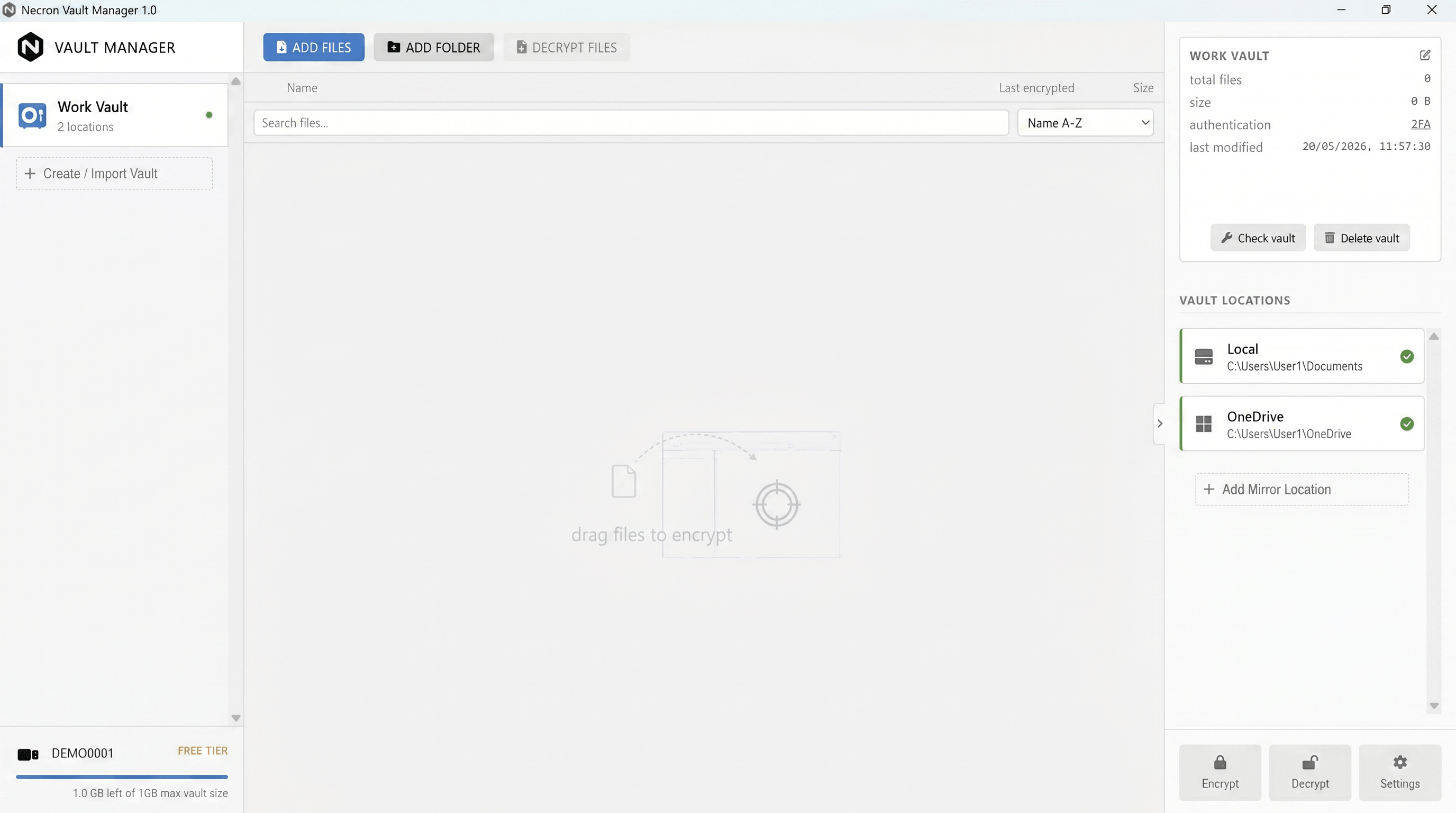
Click a vault in the sidebar to select it. The vault browser in the center stage shows the vault's contents (empty for a new vault).
Step 2: Add Files

Click ADD FILES in the toolbar at the top of the center stage. A file picker dialog appears. Select one or more files you want to encrypt.
You can also:
- Click ADD FOLDER to select an entire directory (all files inside will be added)
- Drag and drop files directly onto the vault browser area
Step 3: Watch the Import
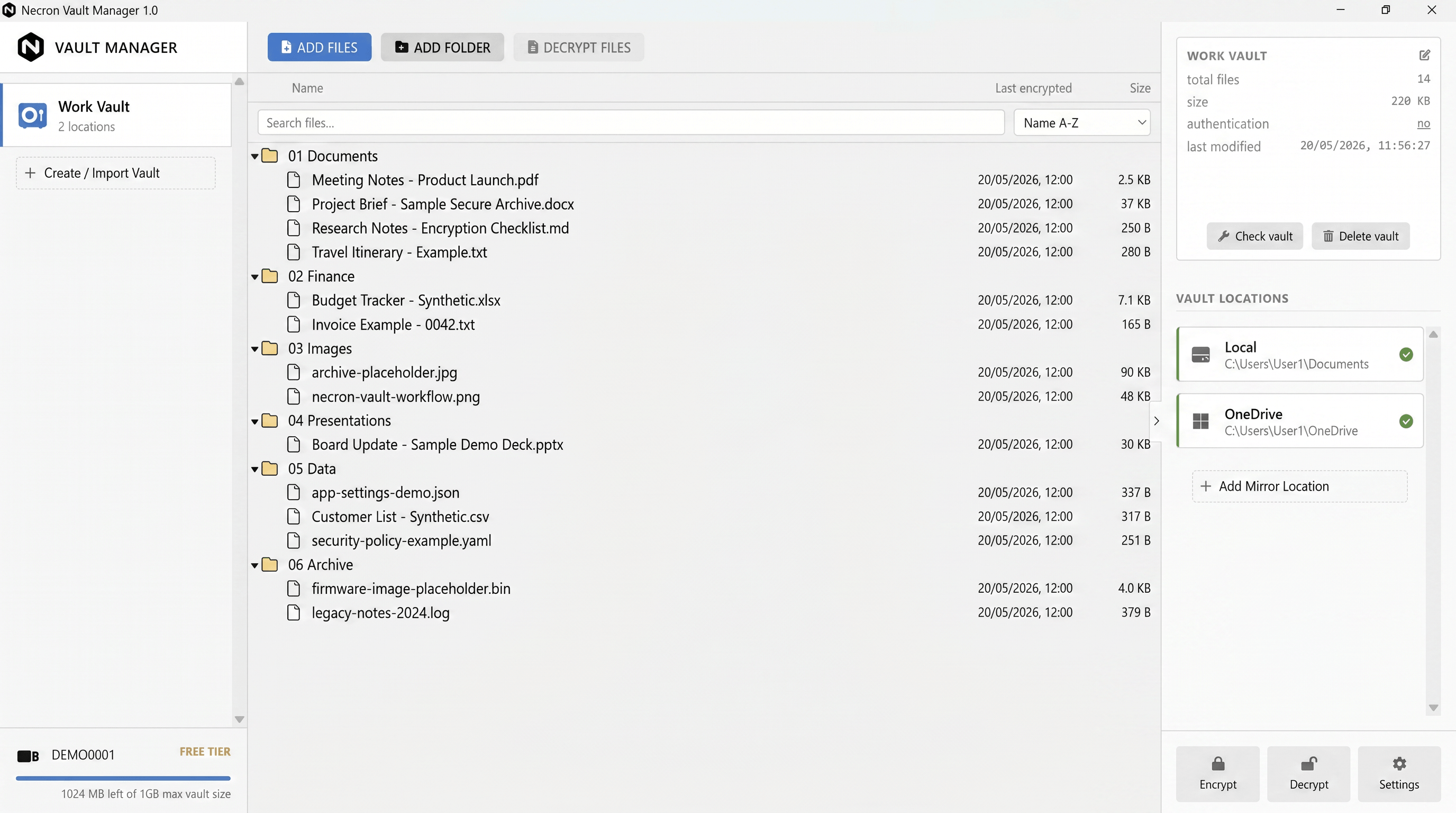
The files are encrypted and imported into the vault automatically. Each file is:
- Encrypted using your connected key material
- Replicated to all vault locations you've configured
- Added to the vault's file list
The vault browser updates to show the newly imported files with their encrypted names, dates, and sizes.
Quick Encrypt Walkthrough
For standalone encryption outside of a vault:
Step 1: Open Quick Encrypt
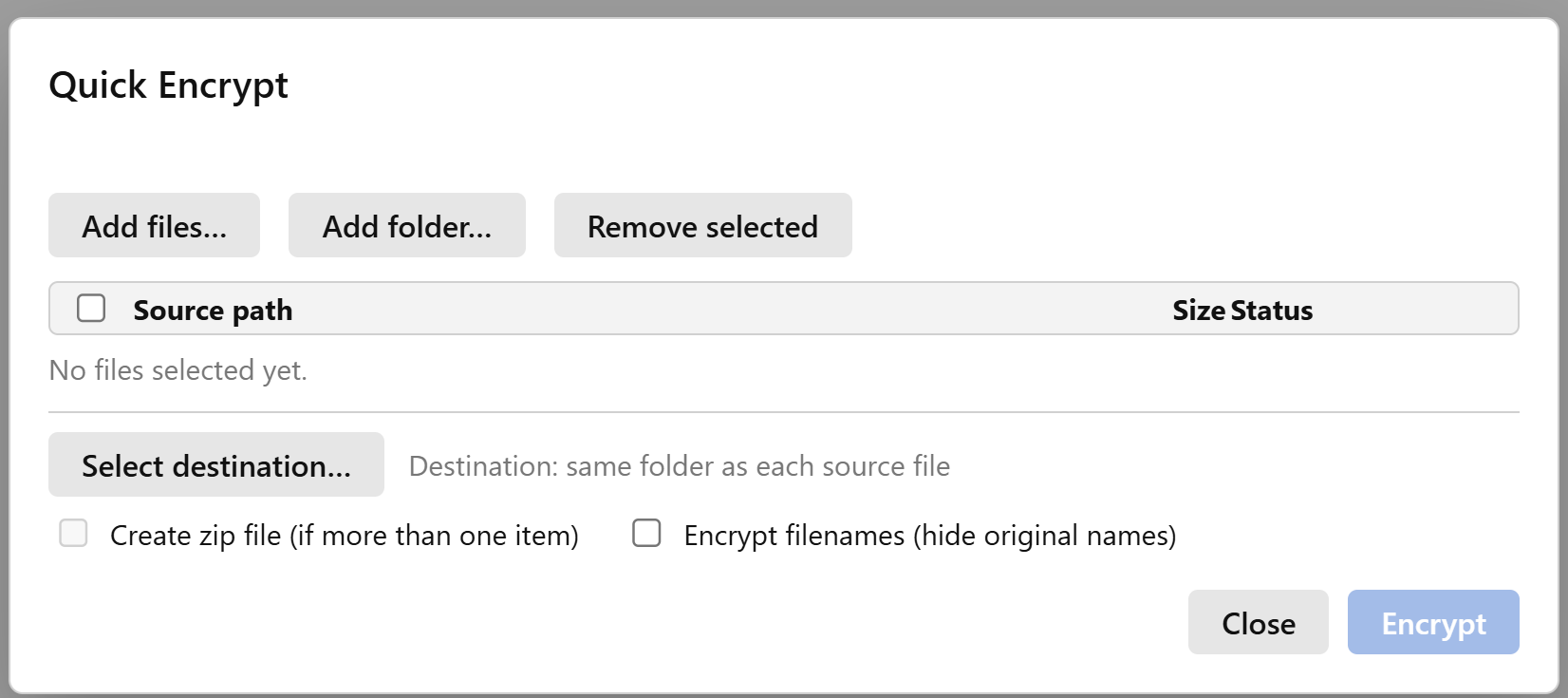
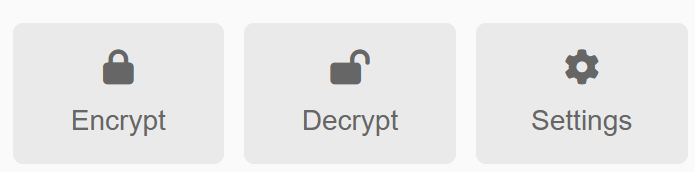
Click the Encrypt tile in the inspector footer (the right-hand panel, at the bottom). A Quick Encrypt modal dialog opens.
Step 2: Add Your Files
Click Add files in the modal to select files from a file picker. You can also click Add folder to add an entire directory.
The selected files appear in a list showing their names and sizes.
Step 3: Choose a Destination (Optional)
By default, encrypted files are saved in the same directory as the originals. To change this, click Choose destination and select your preferred output folder.
Step 4: Review Encryption Settings
Quick Encrypt always uses the NCV3 format. You can optionally enable:
- Encrypt filenames — when enabled, the original filename is encrypted and replaced with a deterministic token, using the
.ncrnextension
Note
The NCV3 format provides authenticated encryption, meaning any tampering with the encrypted file will be detected during decryption. For details on all supported formats, see File Formats.
Step 5: Encrypt
Click Encrypt. The application:
- Reserves a portion of your key material for each file
- Derives a unique per-file encryption key
- Encrypts the file content
- Writes the encrypted output file
A progress indicator shows the status of each file. For small files, this completes almost instantly.
Step 6: Review the Results
After encryption completes, check your output:
| Original File | Encrypted Output |
|---|---|
report.pdf |
report.pdf.ncv3 |
photo.jpg |
photo.jpg.ncv3 |
budget.xlsx |
budget.xlsx.ncv3 |
If Encrypt filenames was enabled, the output will look different:
| Original File | Encrypted Output |
|---|---|
report.pdf |
a7B2x9Kp...Qm.ncrn |
photo.jpg |
f3Yz8Wn1...Rk.ncrn |
The .ncrn files contain both the encrypted content and the encrypted filename — the original name is recovered on decryption.
Verify Your Encrypted File
It's good practice to verify the encryption worked correctly:
Check the Output Exists
Navigate to the output directory and confirm the encrypted file is there. It should be slightly larger than the original due to the encryption header and authentication tags.
Try Opening the Encrypted File
Open the .ncv3 or .ncrn file in a text editor (e.g., Notepad). You should see random binary data — this confirms the file content is encrypted and unreadable without the key.
Decrypt and Compare
The ultimate verification: decrypt the file and compare it with the original.
From a vault:
- Select the file in the vault browser
- Click DECRYPT FILES in the toolbar
- Choose a destination folder
- Open the decrypted output and compare it with the original — they should be identical
From Quick Decrypt:
- Click the Decrypt tile in the inspector footer
- Select the encrypted file in the Quick Decrypt modal
- Click Decrypt
- Open the decrypted output and compare with the original
Danger
Never delete your original file until you've verified you can successfully decrypt the encrypted copy. Always keep backups until you're confident in your workflow.
Understanding Pad Usage
Each encryption consumes a portion of your key material (pad). The capacity bar in the dongle status card at the bottom of the sidebar shows your current usage.
- NCV2 format (vault imports): consumes pad proportional to the file size (1:1 ratio)
- NCV3 format (Quick Encrypt): uses a small, fixed amount of pad per file regardless of file size — very efficient
Tip
With the default 20 MB software key (Free tier), NCV3 Quick Encrypt can handle thousands of files before running out of key material. Vault imports using NCV2 consume pad proportional to file size.
Common Questions
Can I encrypt the same file twice?
Yes. Each encryption uses fresh random values, so encrypting the same file twice produces different encrypted output. Both copies can be decrypted independently.
What happens if I lose my dongle?
Without the matching dongle (or a SLAVE backup copy), encrypted files cannot be decrypted. This is by design — the security model ensures that only the holder of the correct key material can access the data. See Backup Dongles for how to protect against dongle loss.
Can someone else decrypt my files?
Only if they have access to your dongle (MASTER or SLAVE) or your software key. Necron never transmits your key material over the network.
What's the difference between vault import and Quick Encrypt?
Vault import adds files to a managed vault with replication across locations and uses the NCV2 format. Quick Encrypt produces standalone NCV3 files outside of a vault — great for one-off encryption tasks.
Next Steps
- Creating a Vault — organize your encrypted files in a managed vault
- Quick Encrypt & Decrypt — deep dive into the Quick operations panel
- Encrypted Filename Modes — learn about plaintext vs. encrypted filename options
- File Formats — understand NCV2 vs NCV3 format differences