
Adding Locations
Each vault in Necron Vault Manager can have multiple storage locations — local folders, external drives, or cloud-synced directories. Adding more locations provides redundancy: if a file is damaged or missing at one location, it can be automatically restored from another.
Supported Location Types
| Type | Description | Example Path |
|---|---|---|
| Local | Any folder on your computer, including external/removable drives | /Users/you/Vaults/Work or D:\Backup |
| Dropbox | A folder inside your Dropbox sync directory | ~/Dropbox/NecronVault |
| Google Drive | A folder inside your Google Drive sync directory | ~/Google Drive/NecronVault |
| OneDrive | A folder inside your OneDrive sync directory | ~/OneDrive/NecronVault |
Note
External and removable USB drives are selected using the Local option. Just pick the folder on the removable drive using the Local folder picker.
How Locations Work
All locations are mirrors — they hold identical copies of the same encrypted files. When you add a file to a vault, the app writes the encrypted content to all active locations.
The first location you add becomes the primary — this is where the app reads from first for performance. If the primary is offline, it falls back to the next available location.
A location is online if its folder is accessible. If a cloud sync folder isn't mounted or a removable drive isn't plugged in, that location appears as offline and is repaired when it comes back online.
Warning
For cloud locations, two requirements must be met: the cloud folder must be mounted on your filesystem (sync client installed and running), and all files must be saved locally on the device (not streamed or on-demand). See Supported Cloud Services for provider-specific configuration.
Adding a Location
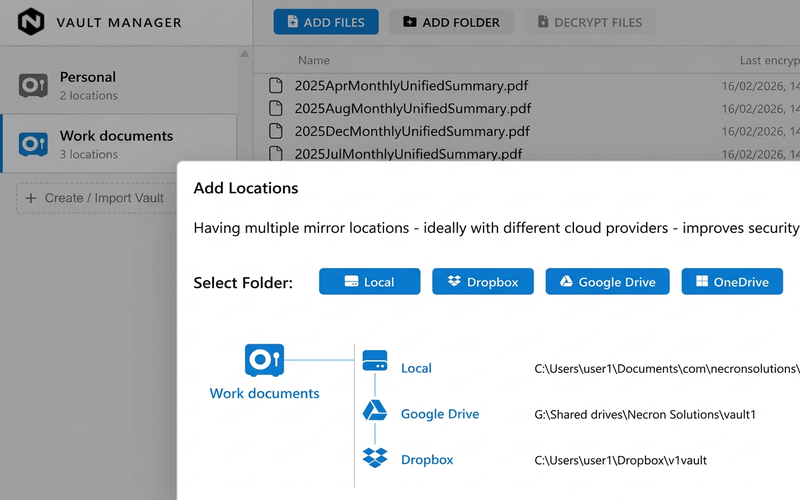
- Open the vault by clicking its name in the sidebar
- In the right-hand inspector panel, find the Locations section
- Click Add Location
- Choose a provider type (Local, Dropbox, Google Drive, OneDrive)
- Select the folder
- The new location appears in the list — all existing vault files are automatically replicated to it
Tip
For best protection, use locations on different providers. A local folder plus a Dropbox folder plus a Google Drive folder means your data survives even if two of the three have problems.
Location Properties
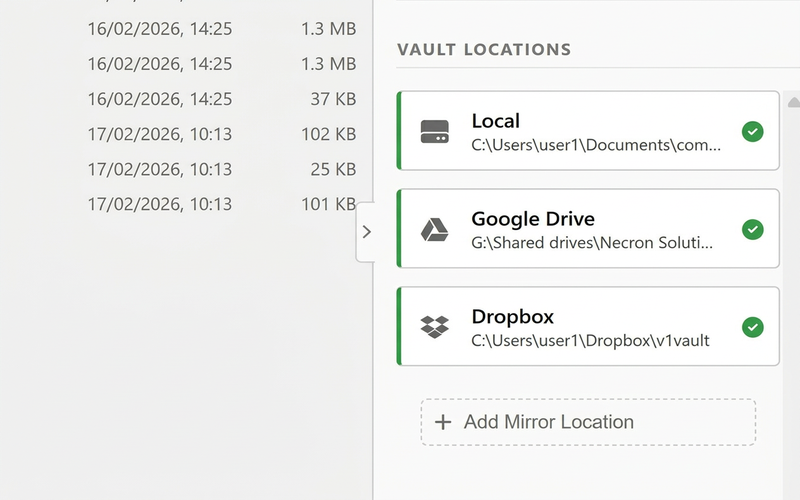
Each location shows:
| Property | Description |
|---|---|
| Kind | Local, Dropbox, Google Drive, or OneDrive |
| Display Name | A human-readable label |
| Path | The full filesystem path |
| Status | Online (green) or Offline (red) |
Deleting a Location
- Click the Delete location action on the location card in the inspector
- Confirm the deletion in the warning dialog
Warning
Deleting a location permanently removes all encrypted files at that path. Other locations remain intact. If this is the only location, the entire vault is deleted.
Recommendations
- Use 2–3 locations on different providers for most users
- Sync time increases with each location — each file must be replicated everywhere
- Keep locations online as much as possible — offline locations accumulate drift
- Your Key Drive must be connected when modifying location configuration
Next Steps
- Vault Browser — browse files inside your vault
- Vault Health & Repair — verify all locations are consistent