
Backup Key Drives
Pro tier users can create backup Key Drives — additional USB drives that contain copies of your encryption key. Each backup is fully functional: it can encrypt, decrypt, create vaults, and do everything your primary Key Drive can. This page explains how to create and manage backups.
Why Create Backups?
Your Key Drive is the only thing that can decrypt your files. If it's lost, stolen, or damaged, your encrypted data becomes permanently inaccessible.
Backup Key Drives protect against:
| Risk | Protection |
|---|---|
| Key Drive failure | USB drives can wear out — backups provide redundancy |
| Loss or theft | A backup stored separately means you still have access |
| Travel | Keep a backup at home while carrying another |
| Safe deposit | Store a backup in a bank safe for disaster recovery |
Danger
If you lose all copies of your Key Drive (primary and all backups), your encrypted data is permanently lost. Create at least one backup and store it in a separate physical location.
Limits
| Rule | Value |
|---|---|
| Maximum active Key Drives per account | 5 (including the primary) |
| Minimum active Key Drives per account | 1 (cannot deactivate the last one) |
Creating a Backup
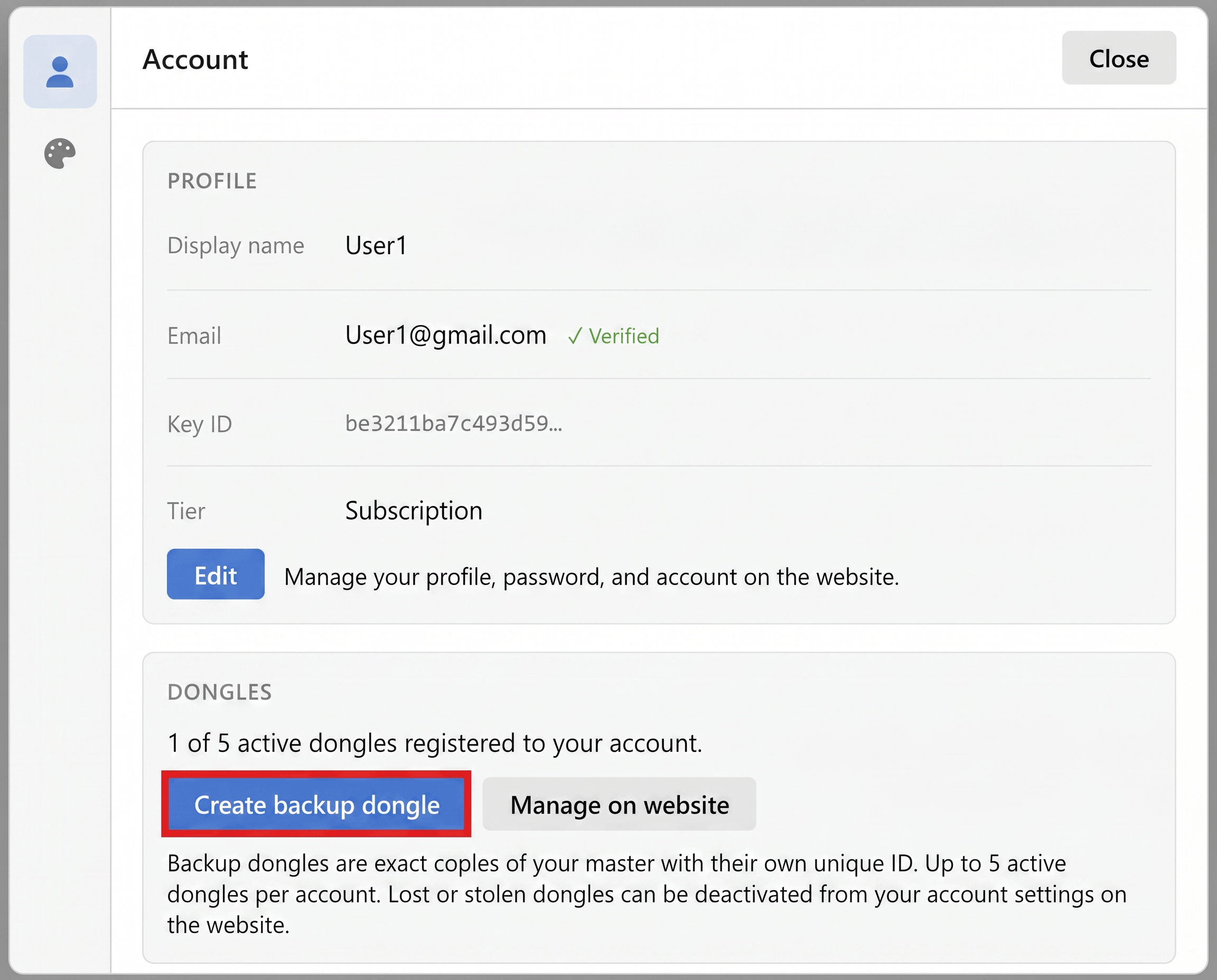
The backup wizard works with a single USB port — no hub needed.
- Insert your primary Key Drive — the wizard reads the key material
- Remove the primary — unplug it when prompted
- Insert a blank USB drive — optionally give it a label (e.g., "Office safe", "Bank vault")
- Click Create Backup — the key is written to the new drive and registered with your account
That's it. The backup Key Drive is ready to use immediately.
Tip
The key material is held in memory only during the wizard and cleared when it completes. It's never written to your computer's disk.
Using a Backup Key Drive
A backup Key Drive works exactly like your primary. Just plug it in and use the app normally. All your vaults and encrypted files are accessible because all your Key Drives share the same encryption key.
When you use a different Key Drive, the app reads the vault configuration that was copied during backup creation. Your vault list appears seamlessly.
Managing Key Drives
You can view and manage your Key Drives from:
- Website: Account settings → "Your Key Drives" panel
- Desktop app: Settings → Account panel
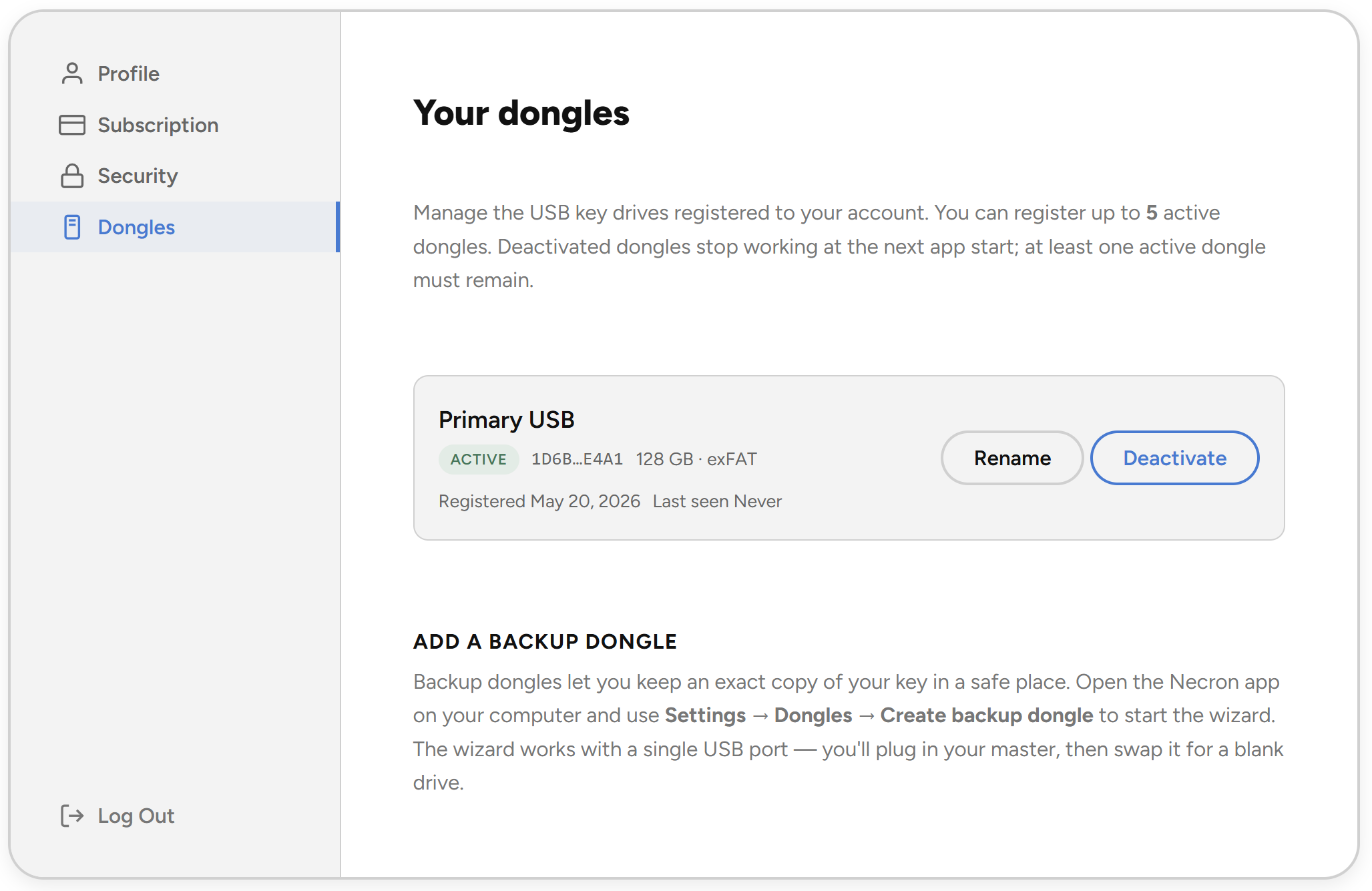
Each Key Drive shows its label, status (Active/Deactivated), registration date, and last verification date.
Renaming a Key Drive
Click Rename to update a Key Drive's label. This is cosmetic — it doesn't affect the Key Drive's function.
Deactivating a Key Drive
If a Key Drive is lost, stolen, or no longer needed:
- Open your Key Drive list (website or app)
- Click Deactivate next to the Key Drive
- Confirm in the warning dialog
Warning
Deactivation is immediate and takes effect on the next app launch using that Key Drive. You cannot deactivate your last active Key Drive.
Deleting a Deactivated Key Drive
After deactivation, the entry remains visible for your records. You can delete deactivated entries to clean up the list.
Further Reading
- Key Drive Setup — initial Key Drive provisioning
- Best Practices — recommendations for Key Drive storage and backup strategy
- Subscription Management — manage your Pro subscription