On this page

Open for Edit

Necron Vault Manager lets you edit encrypted vault files in place using any external editor on your computer. The "Open for edit" feature creates a temporary plaintext working copy, opens it in your default application, watches for changes, and automatically re-encrypts the updated file back into the vault.

How It Works

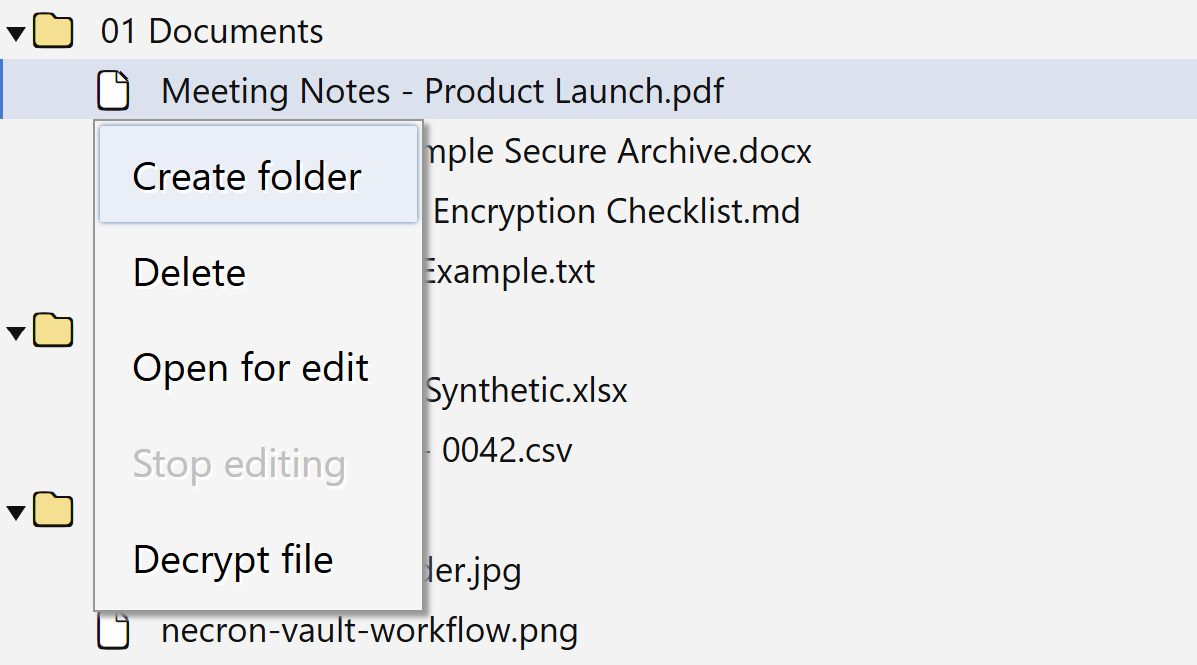
  1. Right-click a file in the vault browser and select Open for edit (or double-click the file)
  2. The app decrypts the file to a temporary working directory on your system
  3. The file opens in your default editor for that file type (e.g., Word for .docx, Notepad for .txt, Photoshop for .psd)
  4. A background watcher monitors the working copy for changes
  5. When you save in the editor, the watcher detects the change and re-encrypts the updated file back into the vault
  6. When you close the editor (or manually stop the session), the temporary file is securely cleaned up

Starting an Edit Session

There are two ways to start editing:

  • Right-click context menu — right-click a file in the vault browser and select "Open for edit"
  • Double-click — double-click a file in the vault tree to open it directly

The file is decrypted to a temporary working directory on your system, and the external editor is launched using your system's default file association — the same application that would open the file if you double-clicked it in File Explorer.

During an Edit Session

While an edit session is active:

  • The vault browser shows a visual indicator on files with active edit sessions
  • The background watcher monitors the working copy for changes
  • When a change is detected, the watcher waits for the file to stabilize before syncing
  • Rapid saves are handled gracefully — the system avoids unnecessary re-encryption during quick successive saves
  • The updated plaintext is re-encrypted and replicated to all vault locations

Note

The watcher is designed for broad editor compatibility, including editors that use "safe save" patterns (creating a temporary file and renaming it rather than writing to the original).

Stopping an Edit Session

Edit sessions end in one of two ways:

  • Automatic — when the editor process exits, the watcher detects it and performs a final sync (if the file changed since the last sync), then cleans up the temporary files
  • Manual — you can explicitly stop an edit session from the vault browser UI

When an edit session ends:

  1. A final sync is performed if any unsaved changes are detected (the system waits up to 30 seconds for the file to stabilize)
  2. The temporary working copy is deleted from the edit-sessions directory
  3. The session is removed from the app's internal tracking

Tip

If the editor is still running when you try to stop the session, the system will retry cleanup for several seconds to handle lingering file locks (common on Windows).

Security Considerations

  • Working copies are plaintext — the decrypted file exists on disk in the temporary directory during the session. This is a necessary trade-off for external editor compatibility.
  • Best-effort cleanup — temporary files are deleted when the session ends. If the app crashes during a session, working copies may remain in the temp directory until manually cleaned up.
  • Not a secure enclave — the edit-sessions directory is in the standard OS temp folder, not a specially protected location. On shared computers, other users with admin access could potentially access active working copies.
  • Session isolation — each edit session uses a unique session directory. Multiple files can be edited simultaneously without interference.

Warning

During an active edit session, a plaintext copy of the file exists in your system's temporary directory. For highly sensitive files, ensure your computer is physically secure during editing and verify that the session ends cleanly (working copy deleted) when you're done.

Limitations

Limitation Details
One session per file Only one edit session can be active for a given file at a time
Requires MASTER dongle Edit sessions require an active MASTER dongle (physical or software key) since they re-encrypt on save
External editor dependency The file opens in whatever application is registered as the default for that file type on your system

Further Reading