
Vault Browser
The Vault Browser is Necron Vault Manager's in-app file explorer for your encrypted vaults. It shows a familiar folder-and-file tree — letting you browse, organize, and manage your encrypted files.
Opening a Vault
Click a vault name in the left sidebar to open it. The vault browser appears in the central area, showing the vault's folder structure and files.
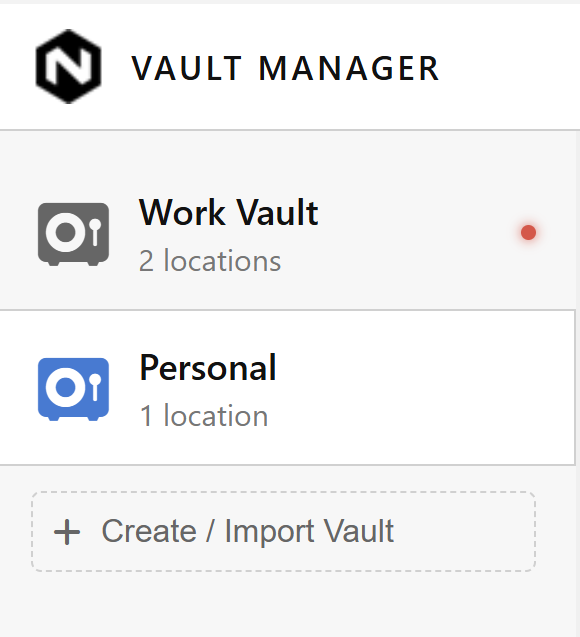
Only one vault can be open at a time. Opening a different vault automatically closes the current one.
Column Headers
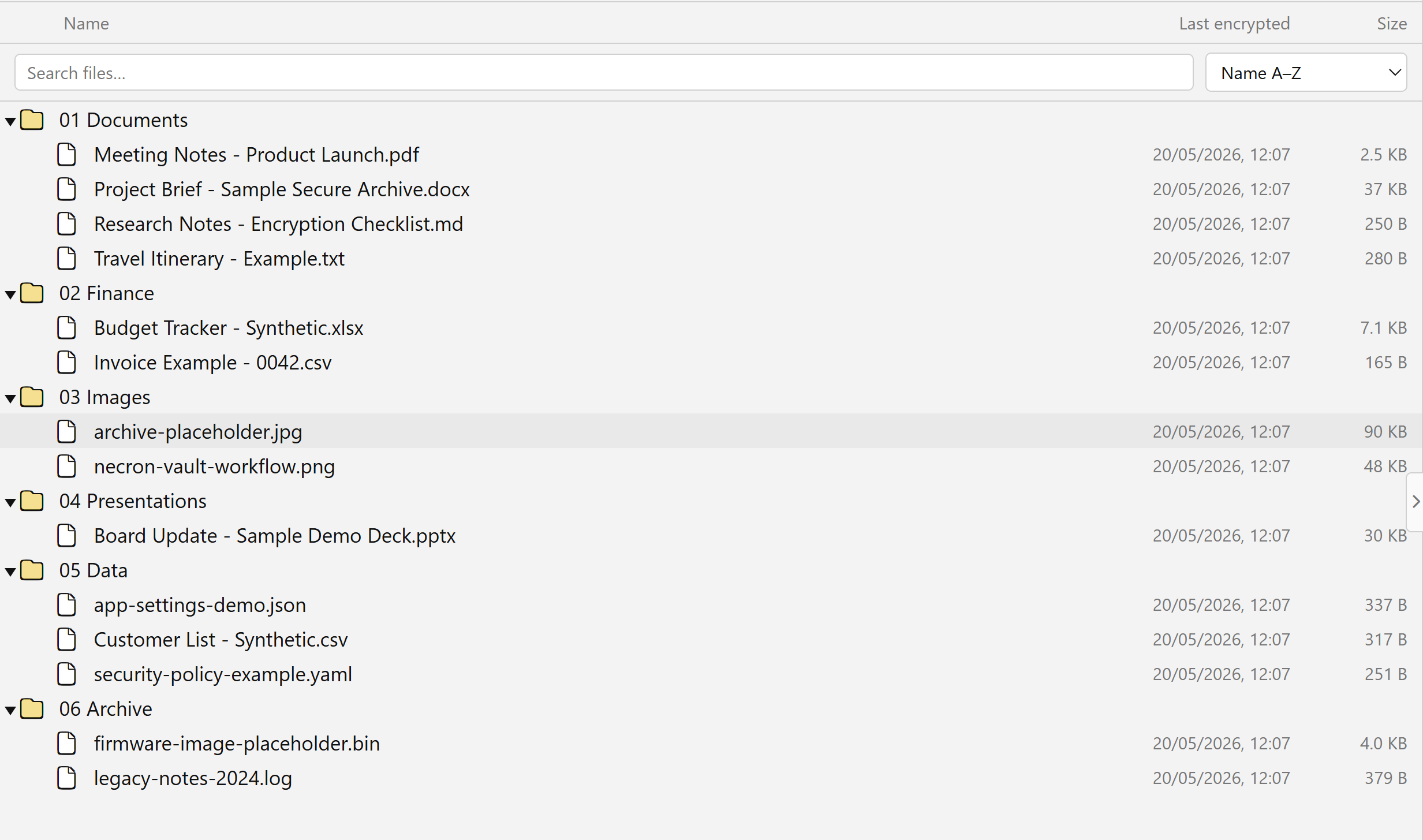
The vault browser tree has three columns:
| Column | Description |
|---|---|
| Name | File or folder name |
| Last encrypted | When the file was last encrypted/imported |
| Size | The original file size |
Search and Sort

Above the file tree:
- Search — type to instantly filter files by name
- Sort — change sort order: Name A–Z, Name Z–A, Newest first, Oldest first
Tree Operations
Navigating
- Click a folder to expand or collapse it
- Click a file to select it (details appear in the inspector)
- Double-click a file to open it for editing (see Open for Edit)
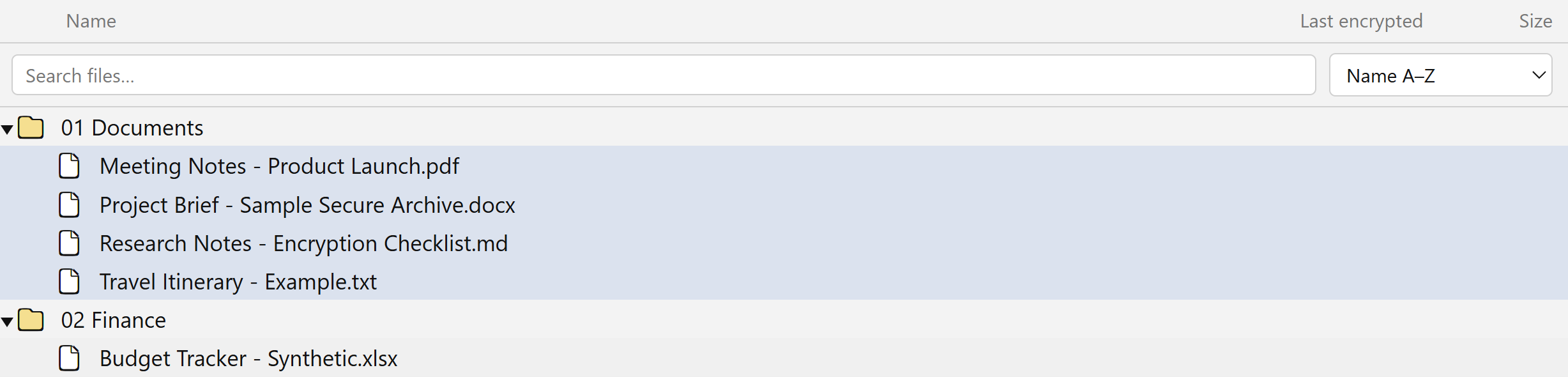
- Multi-select using Ctrl+click or Shift+click
Creating Folders
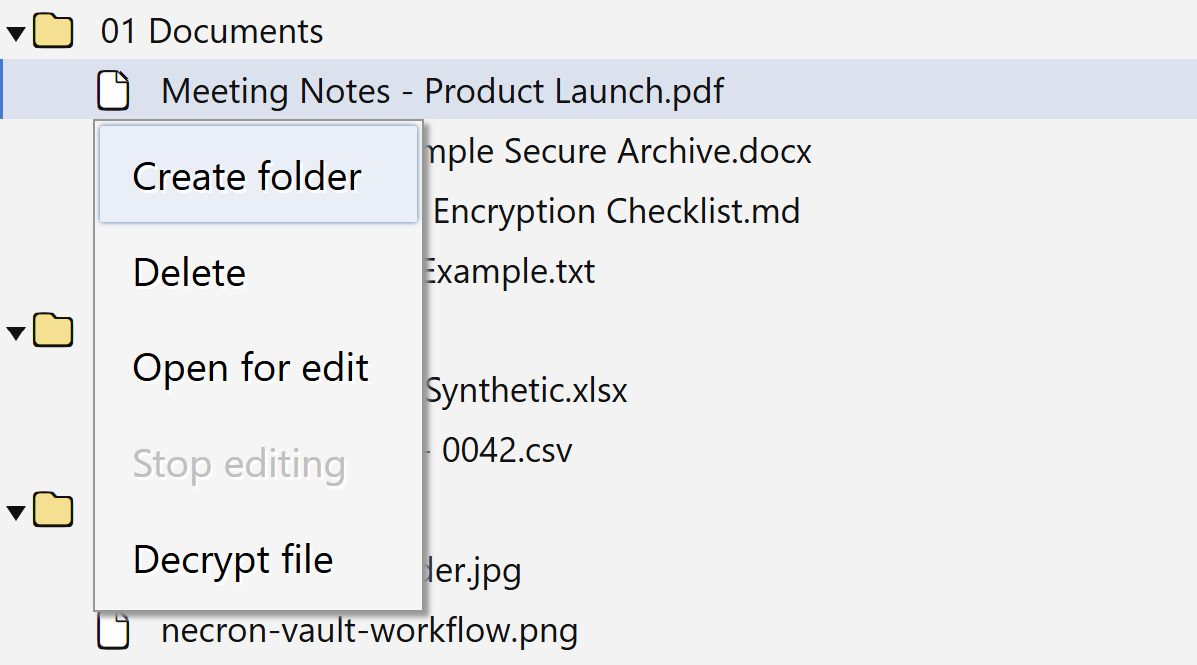
Right-click in the tree and select Add Folder. A new folder is created and you can immediately type the name.
Renaming
Right-click a file or folder and select Rename to edit the name inline.
Moving (Drag and Drop)
Drag files or folders within the tree to move them. Changes are synced to all vault locations.
Tip
You can also drag files from your desktop directly into the vault browser to import them. The dropped files are encrypted and added to the vault. See Importing Files.
Deleting
Right-click and select Delete to remove files or folders from the vault.
Warning
Vault deletion is permanent. Deleted files cannot be recovered from within the vault. If you need the file, decrypt and export it first.
Inspector Panel
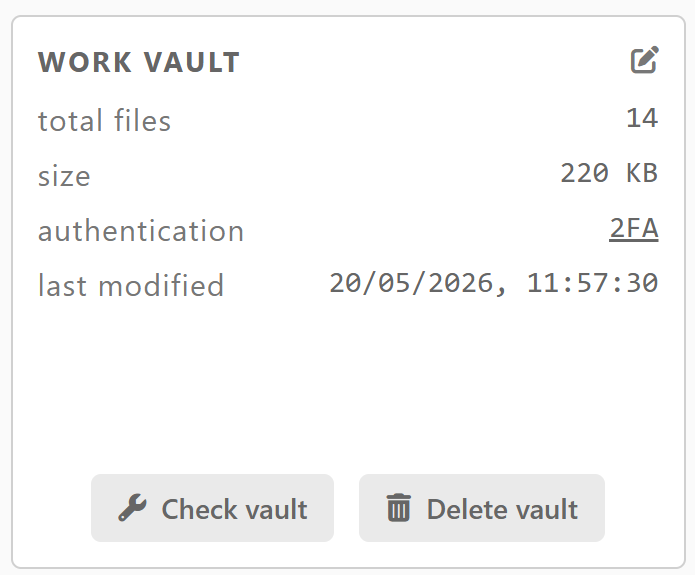
When a file is selected, the right-hand inspector shows:
- Filename and file size
- Per-location status — which vault locations have a copy of this file
The inspector also provides vault-level actions:
| Action | Description |
|---|---|
| Check vault | Run a full health check across all locations |
| Delete vault | Remove the vault entirely |
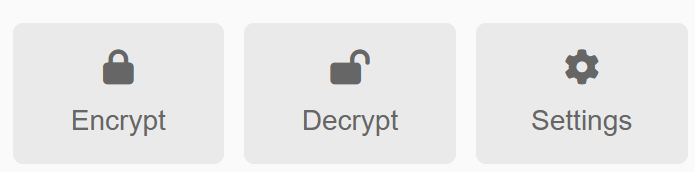
And quick action tiles at the bottom:
| Tile | Description |
|---|---|
| Encrypt | Open the Quick Encrypt modal |
| Decrypt | Open the Quick Decrypt modal |
| Settings | Open the Settings modal |
Vault Locations
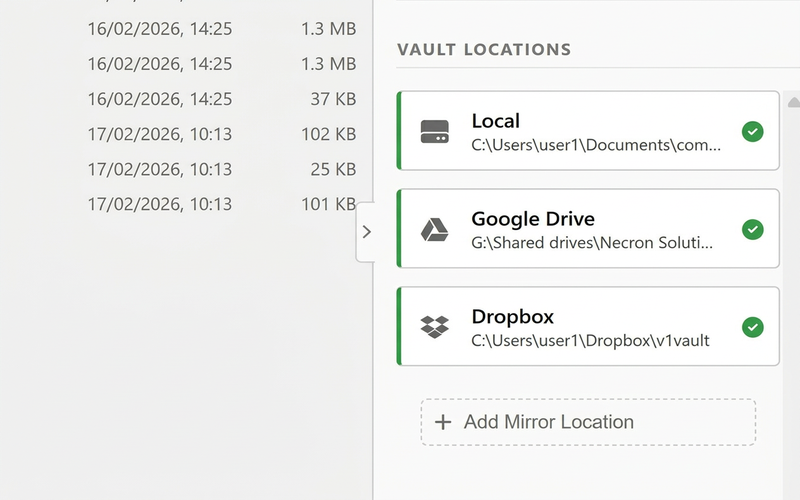
The inspector's Locations section shows all configured storage locations with their status:
- Online (green) — the location is accessible
- Offline (red) — the location is unreachable (cloud folder not syncing, drive not plugged in)
Next Steps
- Importing Files — add files to your vault
- Vault Health & Repair — verify vault health
- Adding Locations — add more storage mirrors