Creating an Account
A Necron account is required to use Vault Manager, whether on the Free or Pro tier. Your account manages your encryption key identity, subscription status, and Key Drive registrations. This guide covers the signup process for both tiers.
Signing Up on the Website
Account creation happens on the Necron website at necronsolutions.com. The desktop app does not have an in-app signup form — clicking "Sign up" in the gatekeeper opens your default browser to the website.
Free Tier Signup
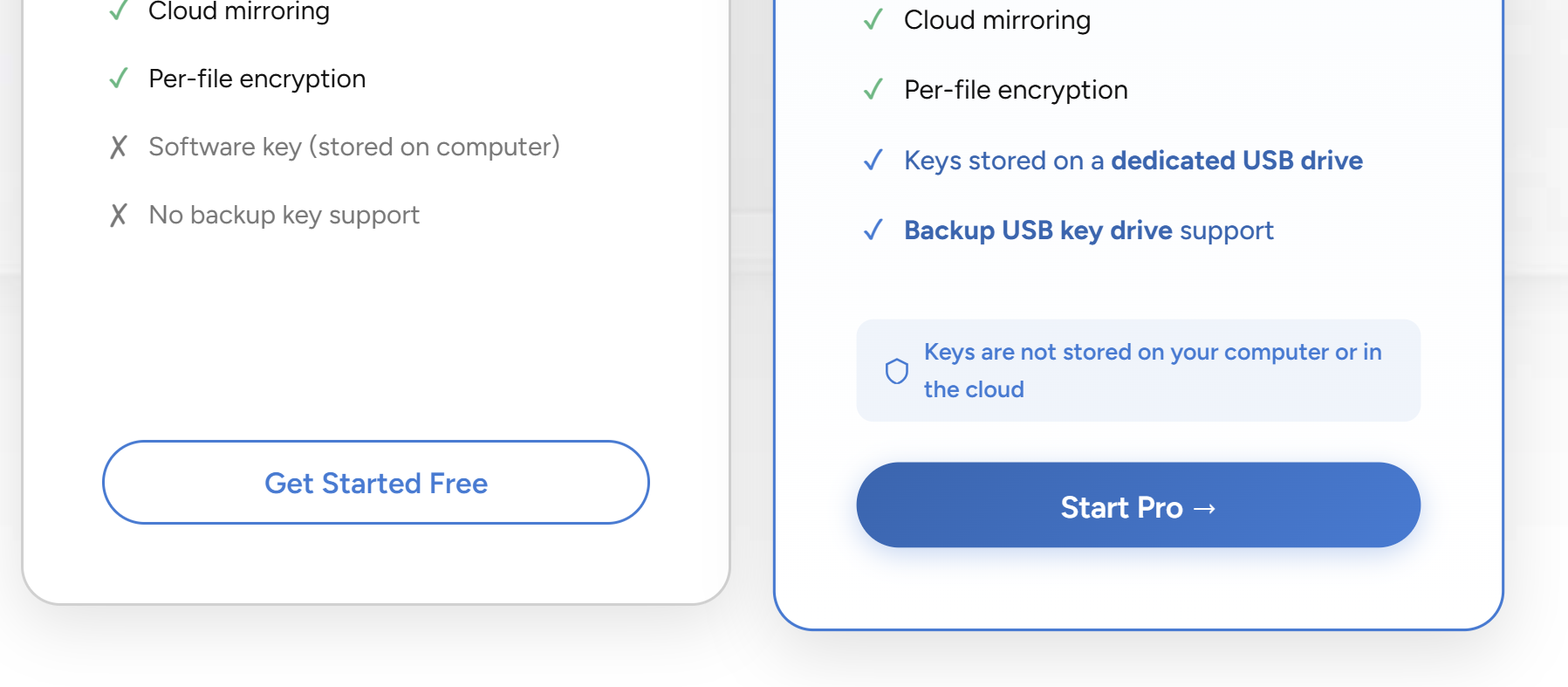
- Visit the Pricing page
- Click Get Started Free
- Enter your name and email address
- Click Create Account
- Check your email for a verification link
- Click the link to verify your account
- Download the desktop app installer from the confirmation page
Tip
Free signup does not require a credit card. You can start encrypting files immediately after verification.
Pro Tier Signup
- Visit the Pricing page
- Click Start Pro
- Enter your name and email address
- Complete payment through the Paddle checkout overlay (monthly or annual billing)
- Check your email for a verification link and payment receipt
- Click the link to verify your account
- Download the desktop app installer from the confirmation page
Note
Pro billing is handled by Paddle, our payment processor. Paddle handles tax calculation, receipts, and subscription management. Necron never stores your payment card details.
First Launch — Gatekeeper
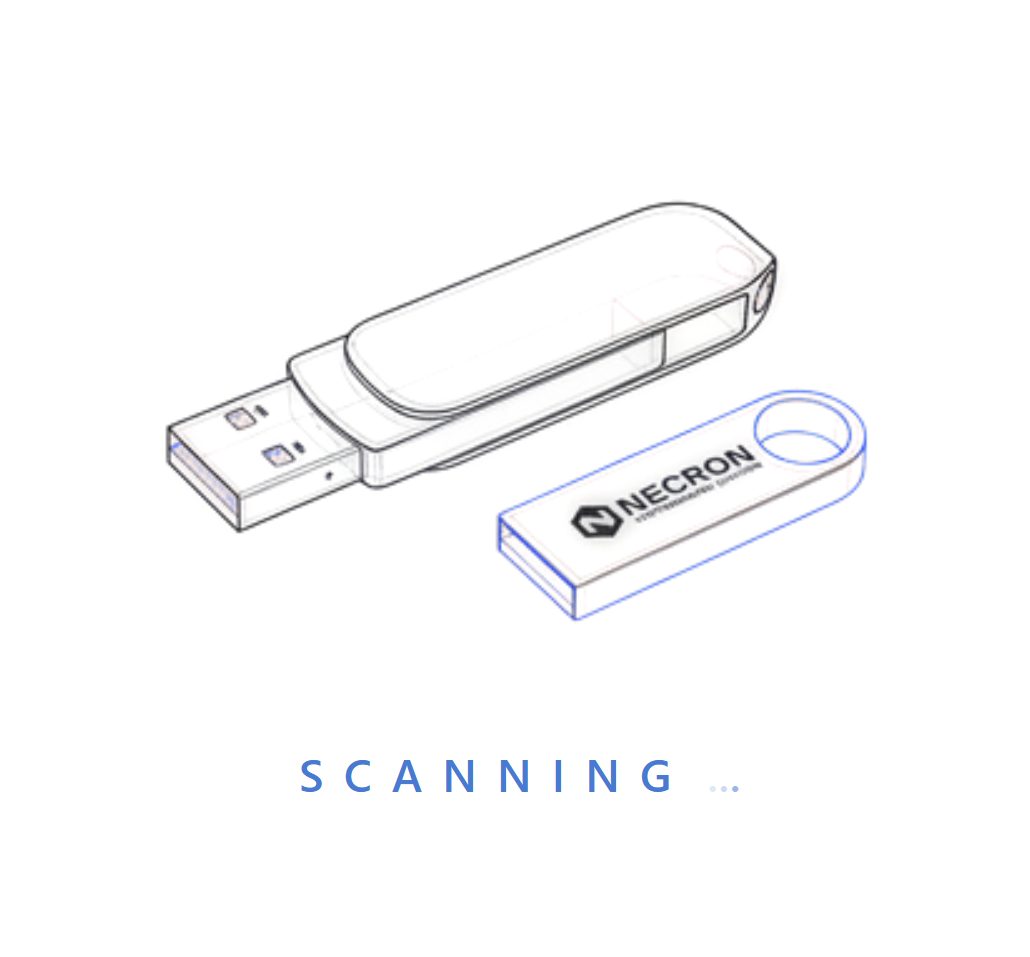
When you launch the desktop app for the first time, you'll see the Gatekeeper screen. This screen appears whenever no Key Drive (physical or virtual) is active. The gatekeeper first shows a SCANNING animation while it checks for connected Key Drives.
Free Tier First Launch
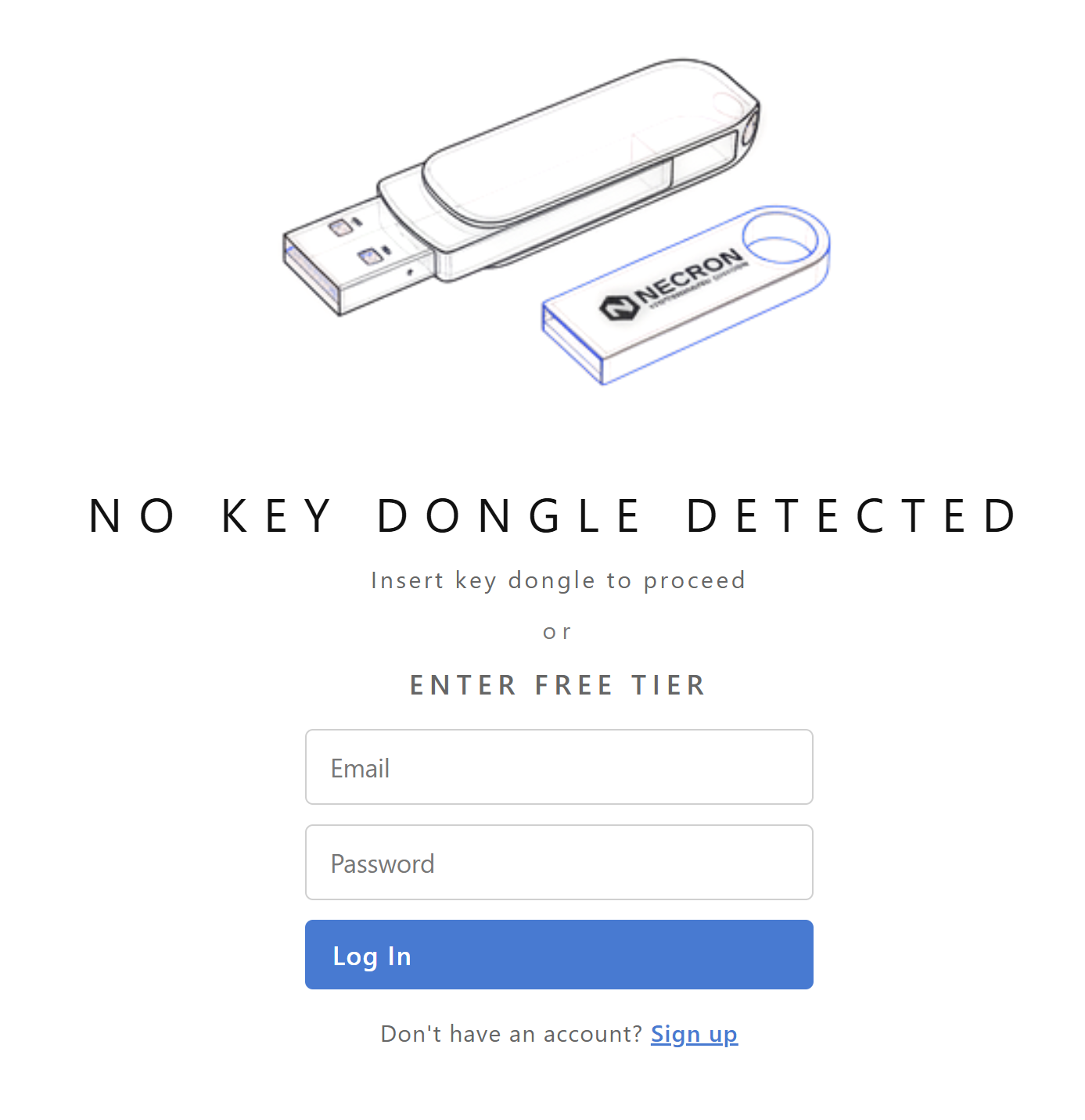
- The gatekeeper shows "NO KEY DRIVE DETECTED" with the prompt "Insert Key Drive to proceed"
- Below that, the Enter Free Tier login form appears with email and password fields
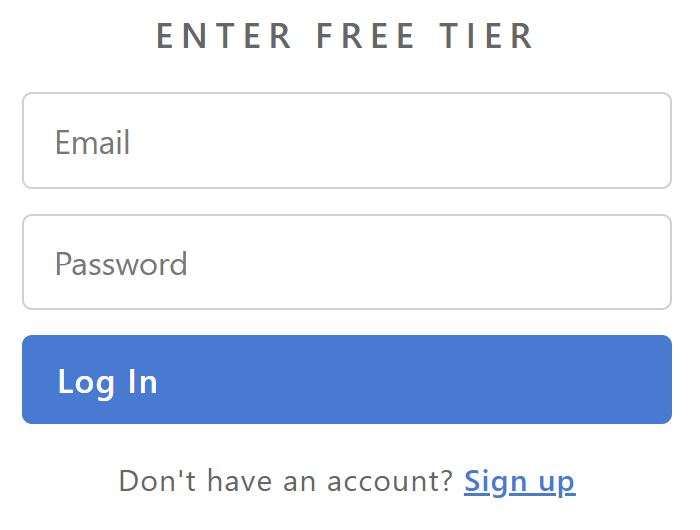
- Enter your registered email and password, then click Log In
- The app provisions a local software key on your computer and logs you in
- You're ready to create vaults and encrypt files
If you don't have an account yet, click the Sign up link below the login form — this opens the website signup page in your browser.
The software key is stored locally on your computer in your user profile directory.
Warning
Your Free tier software key is bound to your user profile. If you reinstall your operating system or delete your user profile, the key becomes inaccessible and your encrypted data cannot be recovered. Consider upgrading to Pro for critical data.
Note
The Free tier allows you to encrypt up to 1 GB of files at any one time. To remove this limit, upgrade to a Pro subscription. See Free vs. Pro Tiers for details.
Pro Tier First Launch
- The gatekeeper scans for a physical Key Drive
- If no Key Drive is detected, you're prompted to insert one
- If this is your first time, the app runs the Key Drive Setup Wizard to write your key material to the Key Drive
- The Key Drive is registered with the server and verified
- You're ready to create vaults and encrypt files
See Key Drive Setup for the complete setup walkthrough.
Account Binding
Your Necron account is bound to a unique key identifier generated by the server during signup. This binding enforces:
| Rule | Description |
|---|---|
| 1 key per account | Each account is linked to exactly one encryption key |
| 1 account per machine (Free tier) | A machine with an existing software key cannot create a second account |
| Key ↔ key material is 1:1 | Each key identifier uniquely identifies one specific set of random key material |
Note
Pro users can have multiple physical Key Drives (up to 5) that share the same key identity. These are backup copies — see Backup Key Drives. The key identity remains the same; each Key Drive has its own unique name.
Email Verification
All accounts require email verification before the key can be used. The verification email contains a one-time link that:
- Confirms your email address is valid
- Activates your account on the server
- Enables the desktop app to authenticate against the API
If you don't receive the verification email:
- Check your spam/junk folder
- Wait a few minutes — emails are sent via transactional email services and may be delayed
- Try signing up again with the same email (the system is idempotent for unverified accounts)
Security Considerations
- Password strength: Choose a strong, unique password for your Necron account. This password protects account access and (for Free tier) the login flow that activates your software key.
- Email security: Your email is the recovery path for your account. Secure it with 2FA on your email provider.
- Account ≠ encryption key: Your Necron account password does not encrypt your files. Encryption is performed by the key material on your Key Drive or software key. Even if your account were compromised, an attacker cannot decrypt files without physical access to the key.
Next Steps
- Free vs. Pro Tiers — compare features and limitations
- Key Drive Setup — set up your Key Drive
- Quick Start Guide — get encrypting in minutes