Settings & Preferences
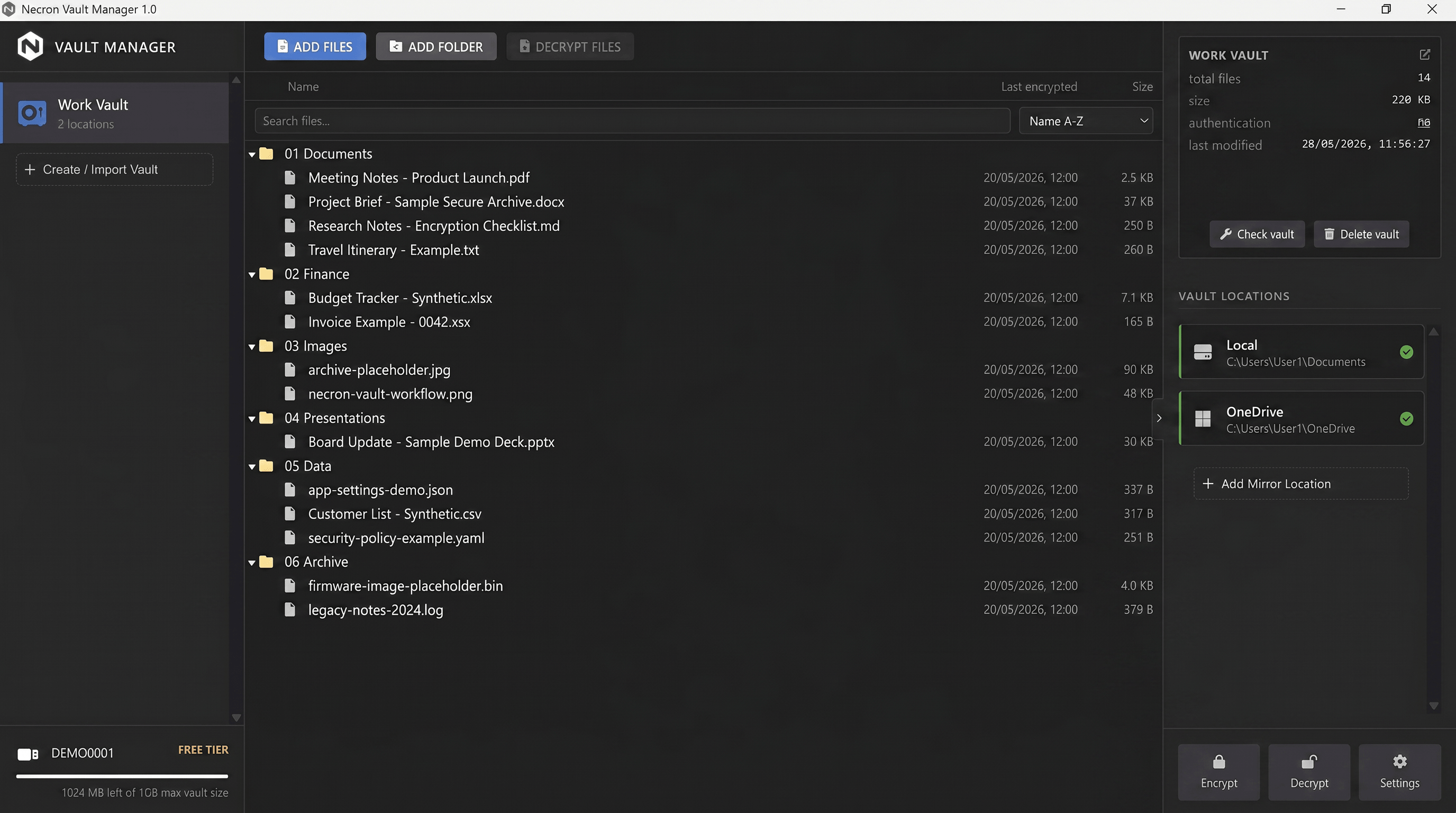
Necron Vault Manager provides a settings panel for viewing your account details, managing Key Drives, and customizing the application's appearance. Access it by clicking the Settings tile (gear icon) in the inspector footer.
Accessing Settings
Click the Settings tile (gear icon) at the bottom of the right-hand inspector panel. The settings panel opens as a two-column modal dialog.
Navigation
The left column contains icon-only navigation buttons with tooltip text:
| Icon | Section | Description |
|---|---|---|
| User | Account | Profile info, Key Drive management, account actions |
| Palette | Appearance | Dark mode toggle |
Click an icon to switch between sections. The right column displays the content for the selected section.
Account Section
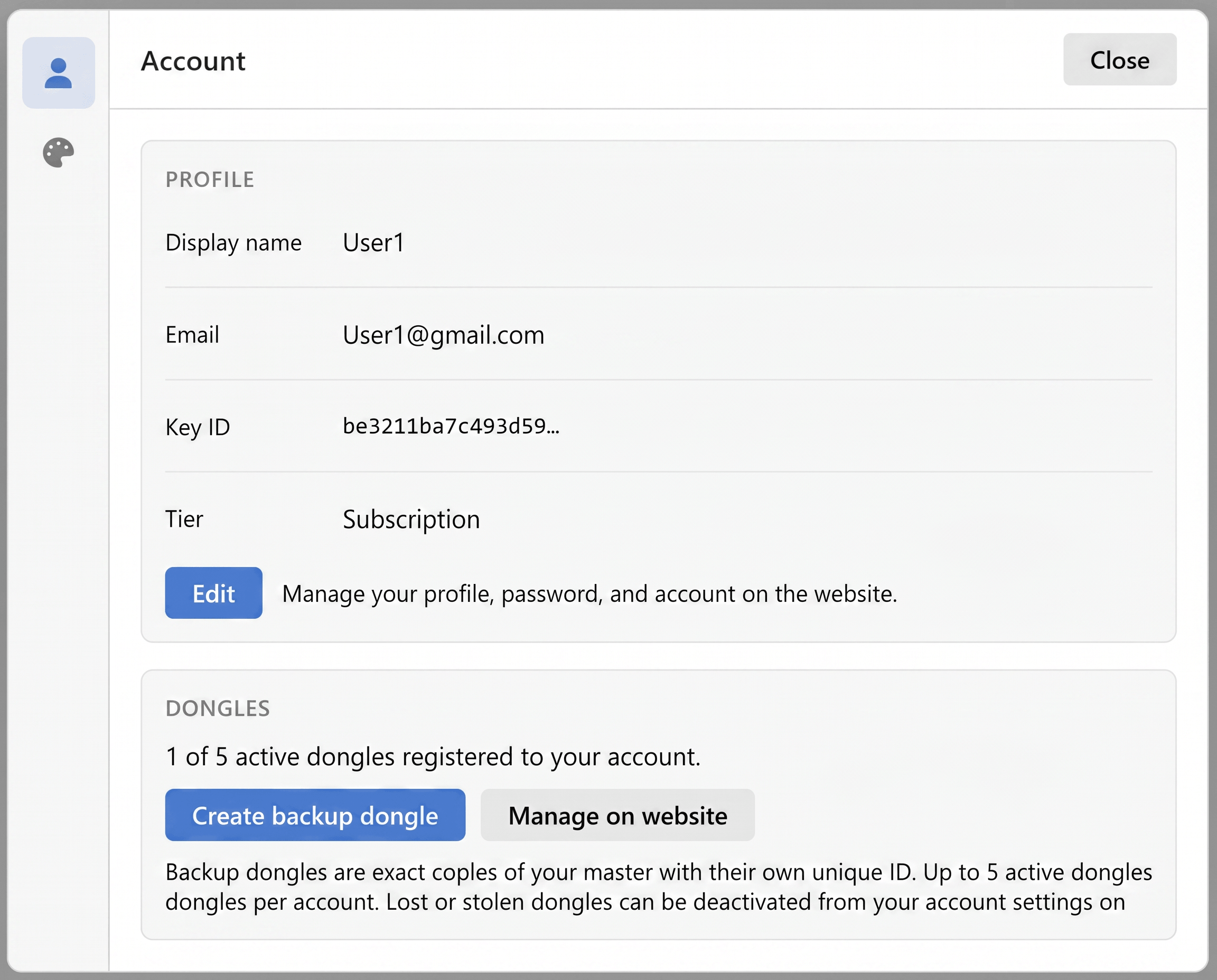
The Account section shows your profile information and account management options. All profile fields are read-only in the desktop app — full account management (editing name, changing password, managing email) is handled on the website.
Profile Card
| Field | Description |
|---|---|
| Display name | Your account display name |
| Your registered email address, with verified/unverified status | |
| Key ID | Your cryptographic key identifier (truncated hex) |
| Tier | Your account tier — "Free" or "Subscription" |
Click the Edit button to open the Necron website in your browser, where you can manage your profile, change your password, and update account settings.
Key Drives Card (Pro Tier Only)
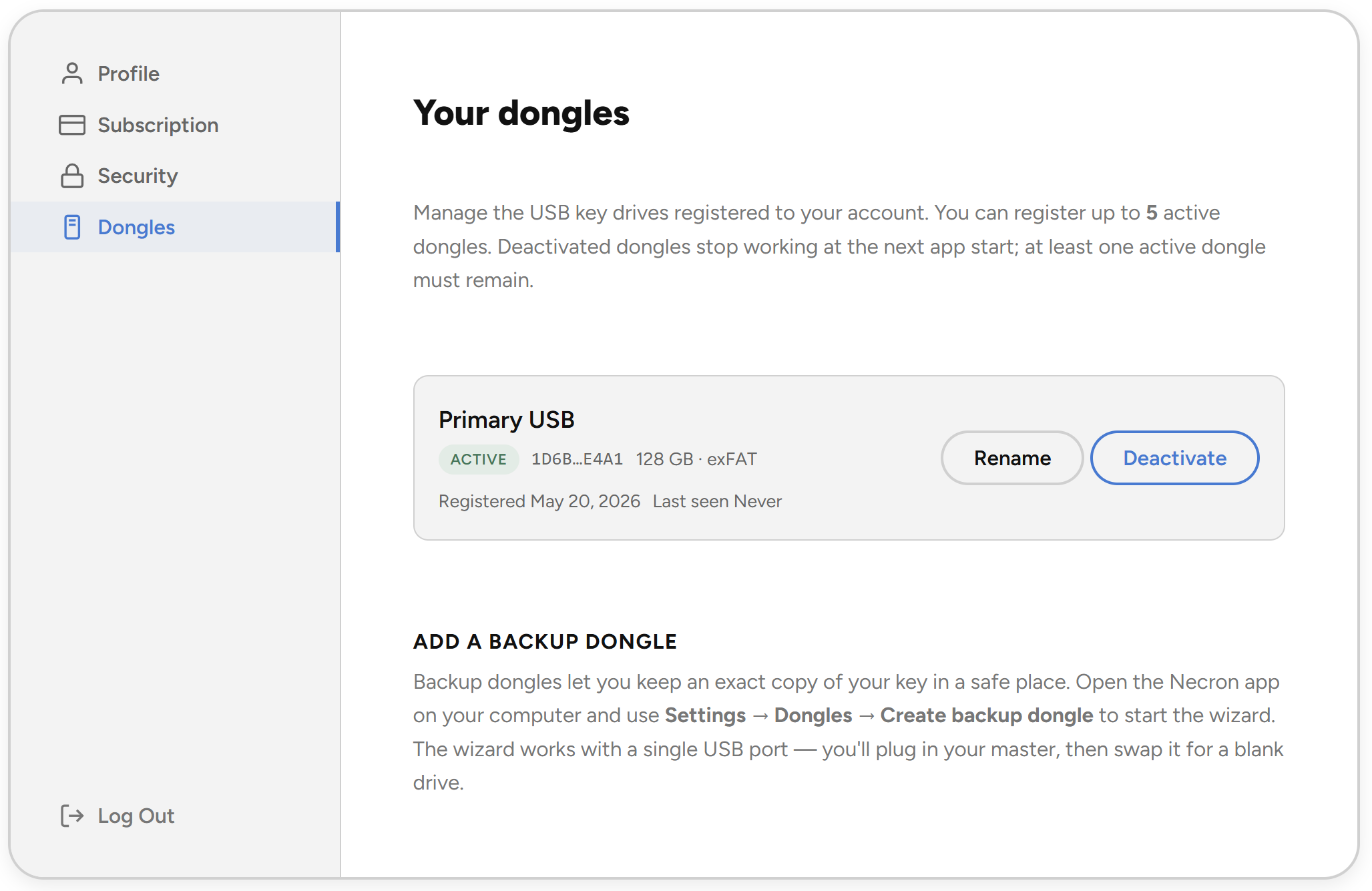
If you are on the Pro (Subscription) tier, the Account section includes a Key Drives card showing:
- A summary of your registered Key Drive count
- Create backup Key Drive button — launches the single-port backup Key Drive wizard (see Backup Key Drives)
- Manage on website button — opens the website account page for Key Drive deactivation and management
Note
Backup Key Drives are copies of your encryption key with their own unique ID. You can have up to 5 active Key Drives per account. Lost or stolen Key Drives can be deactivated from your account settings on the website.
Appearance Section
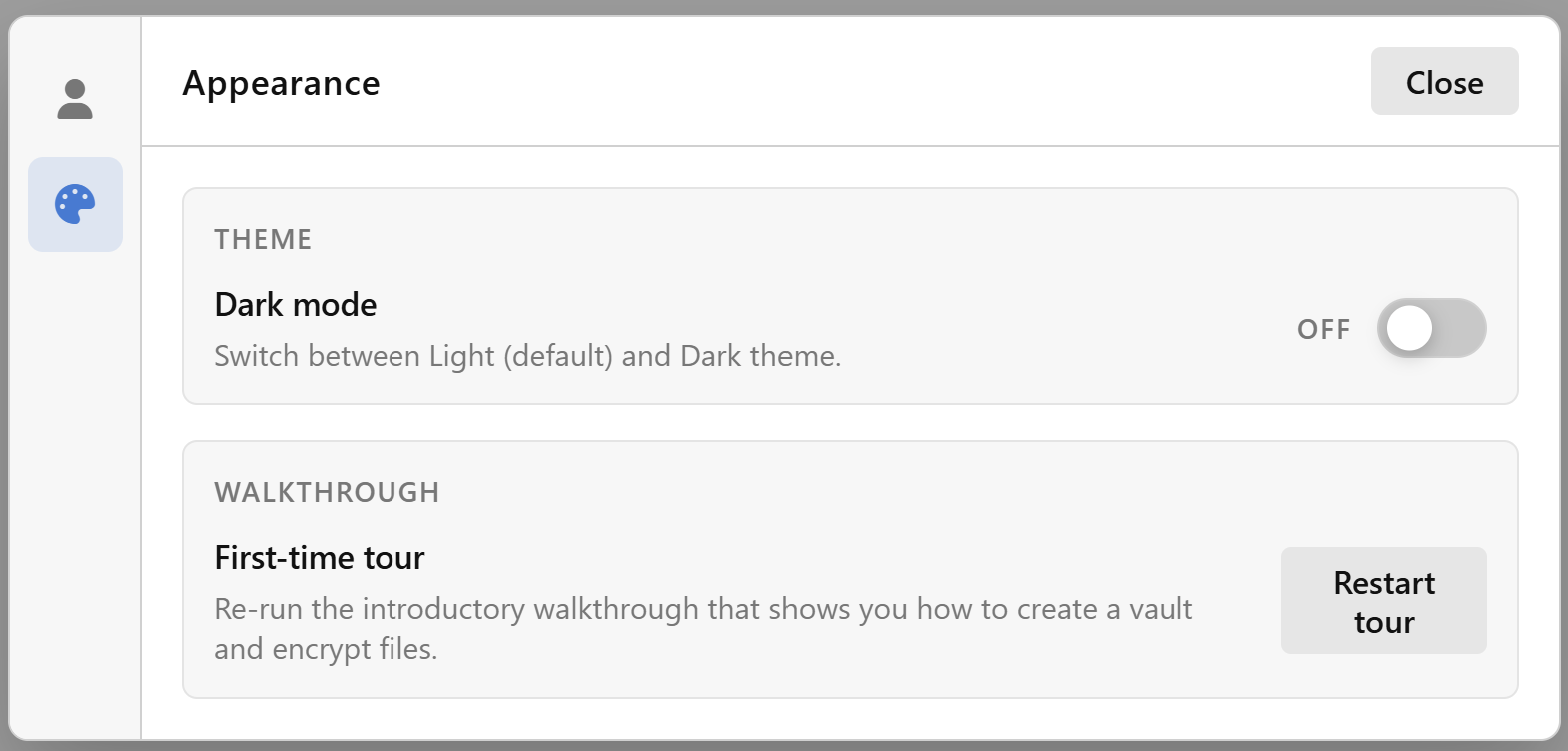
The Appearance section contains theme controls.
Dark Mode
| Setting | Options | Default |
|---|---|---|
| Dark mode | On / Off | Off (Light theme) |
Toggle the switch to switch between Light and Dark themes. The setting is persisted in local storage and applied immediately. When the app launches, it uses the saved preference (defaulting to Light if no preference is stored).
Tip
Dark mode is ideal for low-light environments and reduces eye strain during extended sessions. The theme applies to the entire application interface.
Further Reading
- Backup Key Drives — create backup copies of your Key Drive
- Creating an Account — sign up and manage your account
- Interface Overview — tour of the full application interface