Vault Health & Repair
Necron Vault Manager continuously watches over your encrypted files and automatically repairs problems when they occur. By storing copies across multiple locations, the app can restore damaged or missing files from a healthy source — often without you having to do anything.
How It Works
The app keeps your vault healthy in two ways:
- Automatic check on every vault open — when you open a vault, the app quickly checks that all files are present across all your locations. If any are missing, they're restored automatically from a healthy copy.
- Manual full health check — for a thorough inspection, you can run a full check that verifies every file's integrity and repairs any issues found.
Automatic Repair
Every time you open a vault, a fast background check runs:
- Files that are present at some locations but missing from others are identified
- Missing copies are automatically restored
- A notification appears if any repairs were made
- If everything is healthy, the vault opens instantly with no interruption
You don't need to do anything — this happens silently in the background.
Running a Full Health Check
For comprehensive verification:
- Open the vault you want to check
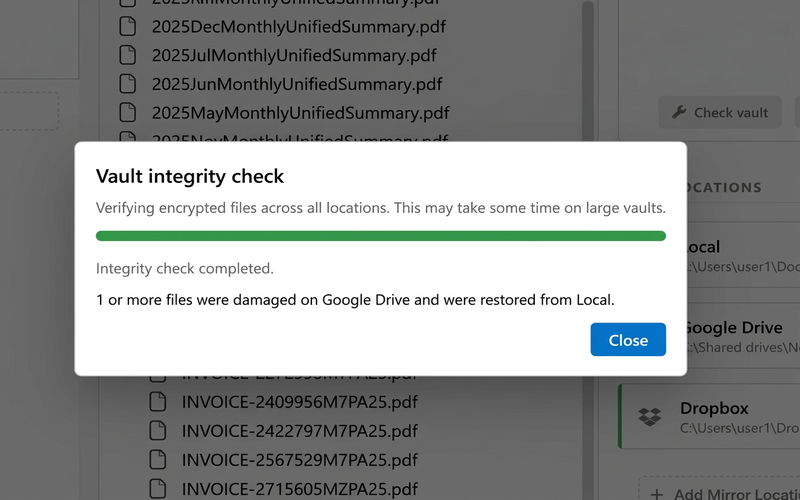
- Click "Check vault integrity" in the right-hand inspector panel
- A progress window shows how many files have been checked
- When complete, you'll see a summary of what was found and fixed
What Gets Detected and Fixed
| Problem | What Happens |
|---|---|
| Missing file | Restored from another location |
| Corrupted file | Replaced with a healthy copy from another location |
| Tampered file | Detected and replaced with a verified copy |
| Renamed file | Corrected to the proper filename |
If a file is damaged at all locations simultaneously, it cannot be repaired — this is why using multiple locations with different providers is strongly recommended.
When to Run a Health Check
- After cloud sync issues — if your cloud provider reported errors or conflicts
- After a power failure or crash — if the app was interrupted during an operation
- Periodically — as a routine check for important vaults
- Before creating a backup — to ensure everything is healthy first
- After re-connecting a location — to make sure it's up to date
Self-Healing Across Cloud Providers
The repair system works seamlessly across different storage providers. For example, if a file gets corrupted on Dropbox, the app can restore it from your local copy or Google Drive. Using locations on different providers gives you the best protection — an issue at one provider won't affect your other copies.
Tip
Use at least 2–3 storage locations on different providers for the best protection against data loss.
Limitations
- Offline locations can't be repaired until they come back online. Repairs happen the next time you open the vault with that location accessible.
- Total loss across all locations is unrecoverable. If the same file is damaged everywhere, no repair is possible — this is extremely unlikely with 3+ diverse locations.
- Lost Key Drive — self-healing repairs storage problems, but your Key Drive remains the key to your data. Always maintain a backup Key Drive.
Next Steps
- Adding Locations — add more storage locations for better resilience
- Best Practices — security recommendations including vault health