Supported Cloud Services
Necron Vault Manager works with cloud storage providers that sync files to a local folder on your computer. The app reads and writes encrypted files to those local folders, and your cloud provider's desktop client handles the syncing automatically.
Warning
Cloud vault locations have two strict requirements: the cloud folder must be mounted on your filesystem (the cloud sync client must be installed and running), and all encrypted files must be saved locally on your device (not streamed or on-demand). If files are not stored on the device, the location will appear as offline.
How It Works
- Install the cloud provider's desktop app (Dropbox, Google Drive, or OneDrive)
- The app creates a local folder on your computer that mirrors your cloud storage
- Configure the folder for local storage — files must be saved on the device, not streamed on-demand
- Add that folder as a vault storage location in Necron Vault Manager
- Necron writes encrypted files to the folder
- The cloud app automatically uploads them
Because Necron encrypts files before they reach the sync folder, the cloud provider never sees your unencrypted data.
Supported Providers
The following providers have dedicated buttons in the Create Vault wizard:
Dropbox
| Detail | Value |
|---|---|
| Desktop app | Dropbox |
| Default folder | ~/Dropbox/ (macOS/Linux) or C:\Users\ (Windows) |
| Setup | Install → sign in → select a subfolder as vault location |
Google Drive
| Detail | Value |
|---|---|
| Desktop app | Google Drive for Desktop |
| Default folder | ~/Google Drive/ (macOS/Linux) or virtual drive (e.g., G:\My Drive\) on Windows |
| Setup | Install → sign in → select a subfolder as vault location |
Warning
Google Drive offers Mirror and Stream modes. You must use Mirror mode for your vault folder so all encrypted files are saved on your device. Stream mode does not store files locally and will cause the location to appear offline.
OneDrive
| Detail | Value |
|---|---|
| Desktop app | OneDrive (built into Windows; available for macOS) |
| Default folder | ~/OneDrive/ (macOS) or C:\Users\ (Windows) |
| Setup | Sign in → select a subfolder as vault location |
Warning
OneDrive has a Files On-Demand feature that must be disabled for vault folders. Right-click the vault folder and select "Always keep on this device" so all encrypted files are saved locally. Files stored only in the cloud will not be accessible to Necron.
Setting Up a Cloud Location
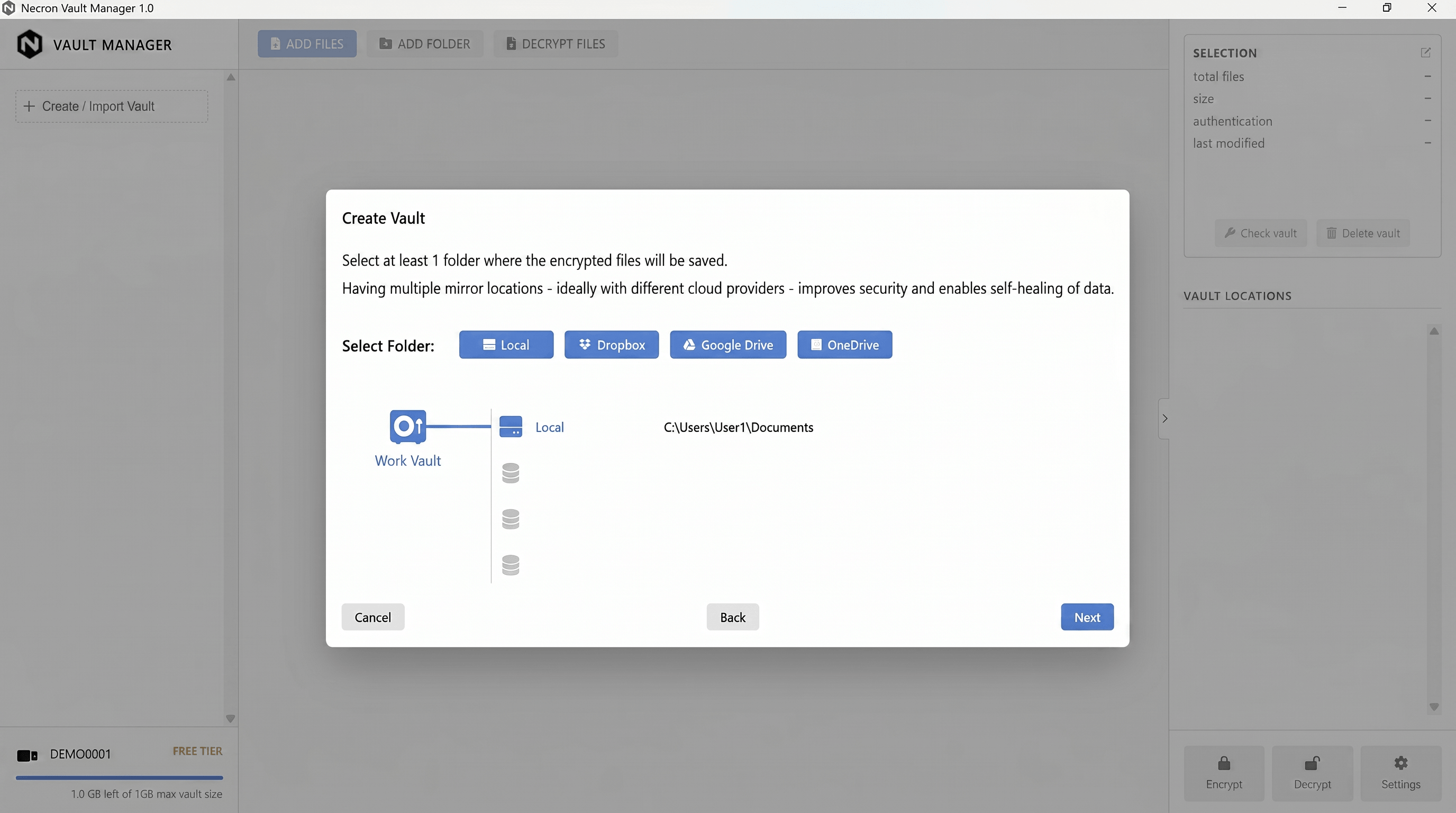
- Make sure the cloud provider's desktop app is installed and running (the folder must be mounted on your filesystem)
- Ensure files are stored locally — configure the cloud client to keep files on your device (not on-demand/streamed)
- In Necron Vault Manager, create a new vault or add a location to an existing vault
- Click the provider button (Dropbox, Google Drive, OneDrive) or Local for other providers
- Navigate to your cloud sync folder and select or create a subfolder (e.g.,
Dropbox/MyVault/) - Done — encrypted files will be written here and synced automatically
Warning
Do not place a vault location inside another vault's storage folder. Necron detects nested locations and rejects them to prevent conflicts.
Best Practices
Use Dedicated Subfolders
Create a separate subfolder for each vault:
Dropbox/
├── NecronVault-Work/        ← Work vault
├── NecronVault-Personal/    ← Personal vault
└── (other Dropbox files)
Don't Exclude Vault Folders from Sync
If the cloud client stops syncing a folder, Necron treats that location as offline and can't repair files there.
Combine Cloud with Local
For the best redundancy, configure each vault with:
- One local folder — fast, always available
- One cloud folder — off-site backup, accessible from other devices
See Adding Locations for details.
Troubleshooting
| Issue | Solution |
|---|---|
| Cloud location shows as "offline" | Check that the cloud app is running and signed in |
| Files not syncing | Verify the folder isn't excluded from sync; check the cloud app's status |
| Slow vault operations on cloud folders | Normal — cloud folders have higher latency. Use a local primary location for speed |
| "Files On-Demand" issues | Disable on-demand for your vault folder — all files must be saved on the device |
| Sync conflicts (duplicate files) | Run a vault health check to resolve |
Further Reading
- Adding Locations — add cloud and local folders to a vault
- Vault Health & Repair — verify and repair files across locations
- Best Practices — location strategy recommendations